
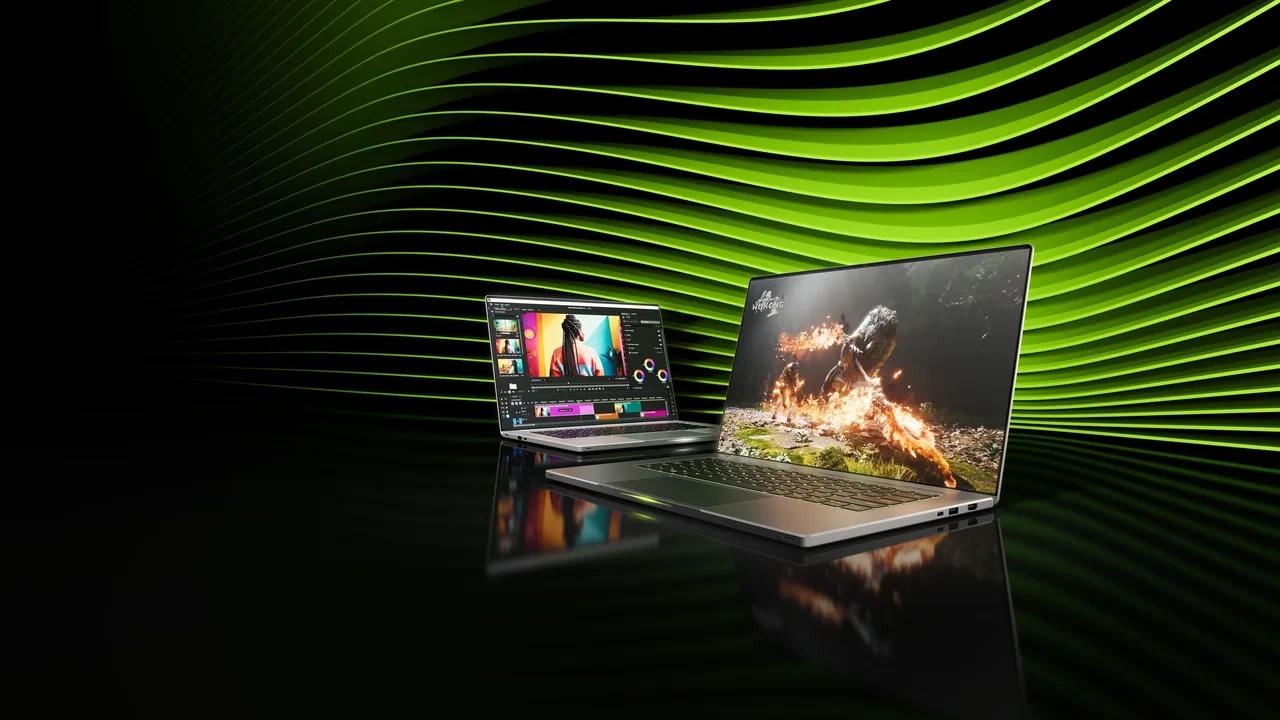
GeForce RTX 5080 Laptop GPU DLSS 5 best settings for real game development workloads
DLSS Quality, 2x Frame Generation, the panel’s native output, and AC power make a practical starting profile for development on a GeForce RTX 5080 Laptop GPU. That setup favors repeatable captures and useful frame-time data over a brief peak FPS result.
Laptop tuning differs from desktop tuning because the GPU shares a constrained thermal and power envelope with the CPU. Its available wattage changes with OEM mode, battery state, and cooling. DLSS 5 is scheduled for the RTX 50 Series around NVIDIA’s September 3, 2026 launch window, so exact driver and game support should be confirmed before a milestone build depends on it.
Power limits determine which settings are sustainable
OEMs define the mobile GPU’s total graphics power range. Quiet, Balanced, and Performance profiles can change that limit, as can CPU load, AC or battery power, and chassis temperature. A 4K internal render may appear stable for a short run and then downclock once cooling saturates. The frame-time graph is often the first place that change becomes visible.
Match output to the physical panel
Most RTX 5080-class laptops use high-refresh QHD+ or 1600p displays, with a smaller number using 4K panels. Set DLSS output to the panel’s actual native resolution. A 4K profile on a 2560×1600 panel cannot be compared directly with a 1080p external-monitor capture because both reconstruction and presentation differ.
Check VRAM before choosing a mode
The RTX 5080 Laptop GPU uses GDDR7 memory. Development builds can exceed a realistic 4K texture budget, especially during a vertical slice or playtest. Once VRAM fills, the driver falls back to system memory, increasing frame time and sometimes reconstruction artifacts. Profile the heaviest scene’s working set before locking a DLSS preset.
DLSS 5 in a development build
NVIDIA describes DLSS 5 as a follow-on to DLSS 4 with multi-frame generation and an updated transformer-based reconstruction model. Developers should focus on temporal stability, input latency, and interaction with capture, replay, and remote-streaming systems.
Until the September 3, 2026 launch window has passed, a visible DLSS 5 control may belong to a preview branch or placeholder. The post-launch settings still use the familiar inputs: internal resolution, quality mode, Frame Generation, and Ray Reconstruction.
Use the 1% low to judge the laptop
Every DLSS mode trades reconstructed fidelity against average frame time and 1% low frame time. The slow tail is usually the better laptop metric. A mode can look strong in an average while hitching whenever the GPU reaches a power or thermal limit.
Separate rendered and presented frames
Frame Generation changes footage and remote-play measurements because a recording contains both rendered and synthesized frames. Label them. In remote playtests, generated frames can alter input feel while network round-trip time stays fixed, so run a separate latency pass instead of judging by the stream’s apparent smoothness.
A balanced workstation baseline
The following profile leaves headroom for an editor, capture tool, or streaming client without sacrificing too much image quality. It is a configuration, not a benchmark result.
| Setting | Recommended value | Why it is the default for dev work |
|---|---|---|
| DLSS mode | Quality | Balances fidelity and frame time on a QHD+ panel while leaving room for an editor or streaming session. |
| Internal render resolution | Match panel native minus a DLSS Quality step | Avoids over-rendering for a smaller panel or under-rendering for a 4K screen. |
| Frame generation | On, but limited to 2x | Provides a visible frame-rate increase without the latency penalty of higher multipliers on a mobile GPU. |
| Ray reconstruction | On when the project uses heavy ray-traced denoising | Reduces the cost of RT effects and exercises the path most likely to affect the lighting pipeline. |
| Sharpening | Leave at DLSS default, do not stack a second sharpening pass | A second pass commonly produces edge ringing in captures. |
| Frame cap | Cap at panel refresh minus a small margin | Avoids power spent on frames the display cannot show and reduces heat. |
| OEM performance mode | Balanced or Performance, not Quiet | Quiet mode is a common reason a laptop GPU appears slower than expected. |
| Power source | AC, with OEM “hybrid” or “discrete only” mode enabled if available | Battery operation silently halves the available TDP on most chassis. |
Stable footage for reviews and trailers
A capture from frame 0 through frame 3600 needs stable image behavior more than the highest peak rate.
- Pin the engine to a fixed divisor of refresh, such as 60 FPS on a 120 Hz panel.
- Disable automatic resolution scaling so internal resolution cannot change during the take.
- Use DLSS Quality or Performance as appropriate, but keep the selected mode fixed for the complete session.
- Use 1x Frame Generation when comparing footage with a desktop reference that does not contain synthesized frames.
- Capture with HDR disabled when the finished video will be SDR because the inverse transform can alter subtle reconstruction gradients.
If two identical laptops are available, record the same route with a different DLSS mode on each. Side-by-side footage gives an art director a clearer comparison than a synthetic score.
Latency-sensitive playtests and esports
- Enable NVIDIA Reflex On or On + Boost, then confirm that the in-game latency display is lower with Boost than with Reflex alone.
- Prefer Performance to Quality when the build already clears its target comfortably at panel resolution. Lower internal resolution may be worth the small loss in fidelity.
- Cap at panel refresh. Asking the GPU to over-render for a 240 Hz display it cannot sustain harms the 1% low.
- Disable multipliers above 2x, and run the first calibration with Frame Generation off to establish a clean baseline.
Maximum quality for a short demonstration
A screenshot, vertical-slice preview, or short recording can use the available thermal budget briefly.
- Select Quality or Ultra Quality and consider a higher internal resolution than the normal playtest profile.
- Use the OEM Performance or Turbo profile while connected to AC power.
- Warm the chassis for several minutes so the capture reflects a sustained clock rather than a short boost.
- Keep the take short because sustained high power will eventually throttle and change frames within the same recording.
Frame Generation must improve the slow frames too
Frame Generation inserts synthesized frames without changing the rendered frame rate. A desktop RTX 5080 usually has more power headroom for that work. On a laptop, unstable base frames, missing motion vectors, and thermal recovery can all undermine the result.
Ghosting caused by a pass with motion vectors disabled is a content fault rather than a DLSS fault. A base rate below the safe interpolation range can make generated frames stutter. Keeping synthesis active also holds the GPU at a higher load and may trigger a thermal recovery event several minutes into a run.
Start with Frame Generation off and save the average and 1% low. Enable it, repeat the same path, and compare both metrics. If the 1% low falls by more than a small single-digit percentage, leave the feature off for that build or reserve it for a demonstration mode.
Ray Reconstruction can change finished lighting
Ray Reconstruction replaces a hand-tuned denoiser in path-traced or hybrid ray-traced pipelines. It can alter indirect light, specular bounces, and reflections, not merely performance.
It may expose seams in lightmap atlases that the previous denoiser concealed, so an art-heavy project should allow time for a re-bake. A stable capped render gives the model cleaner input. Custom film grain and other screen-space effects added after upscaling also need to be checked on the same camera path.
Driver and OEM controls that alter results
| Setting | Where it lives | Effect on DLSS |
|---|---|---|
| NVIDIA App global profile | NVIDIA App, Graphics tab | Can override DLSS mode or Frame Generation across every game. Disable it for development. |
| OEM performance profile | OEM control panel, such as Armoury Crate, Lenovo Vantage, or Omen Gaming Hub | Sets TDP and fan behavior. Quiet mode can reduce available wattage by 30 percent or more. |
| Hybrid graphics mode | BIOS or OEM control panel | The editor may render on the iGPU. Force discrete mode for capture work. |
| Resizable BAR | BIOS | Improves CPU-to-GPU transfer and can change frame-time variance during scene loads. |
| Hardware-accelerated GPU scheduling | Windows Settings, Display, Graphics | Generally helps, but should be toggled once during baseline testing on the specific build. |
| VSync in the game | In-game video settings | Interacts with the frame cap. When capped below refresh, prefer VSync off to avoid double pacing. |
| Multi-display | Windows display settings | An external display can change active resolution. Disconnect unused screens before capture. |
Validate each chassis and power state
- Use the worst representative level area rather than a synthetic scene, and judge the 1% low there.
- Measure Quiet, Balanced, and Performance OEM modes. A feature that works only in Performance does not transfer to every laptop profile.
- Repeat on battery, AC, and a docking station when relevant because each can change TDP.
Save GPU clock, package power, hotspot temperature, average FPS, and actual frame time. A higher average with an unchanged 1% low is useful. A higher average paired with a worse 1% low usually indicates a power or thermal issue.
Common faults on RTX 5080-class laptops
NVIDIA’s DLSS 5 research information explains the reconstruction path, but several apparent DLSS faults begin elsewhere in the system.
- A soft image at Quality can mean the panel is scaled above native or another sharpening pass runs after DLSS.
- Stutter at level start often comes from shader loading, which delays the first rendered frames and leaves synthesis behind.
- Captures that differ between runs may indicate an OEM profile that changed after reboot or a different Windows power plan.
- A missing DLSS option may mean the project uses a pre-DLSS 5 build or the installed driver branch lacks the SDK. Check the release window and versions before filing a bug.
- Good frame time with poor input feel can mean Frame Generation is active without Reflex, or a third-party tool has changed the Reflex mode.
Give QA two reproducible presets
For testers spread across several laptop models, specify one recommended profile and one alternative. Name DLSS mode, Frame Generation state, OEM profile, and power source for both.
More than two profiles are often ignored, leaving the bug tracker full of reports that are actually thermal differences. A short configuration template can prevent days of misdiagnosis.
Document generated frames in capture pipelines
NVENC video includes both rendered and synthesized frames when Frame Generation is enabled. If motion appears to slide, reviewers need to know which frame types they are seeing before the team changes settings.
Remote-play software may apply its own pacing without recognizing synthesized frames. Confirm whether the platform’s displayed rate means rendered or presented FPS before using it to judge DLSS.
What to expect after official release
The same inputs used by DLSS 4 continue to define DLSS 5, while the reconstruction model is updated and multi-frame generation may provide higher multipliers on supported hardware. Higher is not automatically better on a laptop because power can become the limit.
The RTX 50 Series is a Blackwell-generation consumer family. Use the family listing for broad model context and the NVIDIA research page for DLSS 5 information, then verify the exact date and supported games against the official announcement and release notes.
Playtest configuration checklist
- Confirm the OEM performance profile and connect AC power.
- Disable the NVIDIA App global override for the game.
- Set DLSS to Quality and Frame Generation to 2x, with one documented alternative.
- Cap at panel refresh or slightly below it.
- Verify motion vectors in every pass using Ray Reconstruction.
- Capture the same route with Frame Generation on and off for the art director.
- Record 1% low frame time, package power, hotspot temperature, and average FPS.
- Save the setup as a named preset that QA can reproduce.
Turn one variable at a time
Apply the baseline to one representative project scene and record average FPS, 1% low, package power, and hotspot temperature. Change one input, then repeat the identical route. The profile that remains stable on the RTX 5080 Laptop chassis is the one worth documenting for adjacent models.
A long Baldur’s Gate 3 quest such as Free the Artist in Baldur’s Gate 3: How to Start and Finish the Quest illustrates how game state and capture behavior can shift during an extended sequence. Live-service systems can create similarly unexpected QA cases, including redemption-code flows such as those discussed for Zenless Zone Zero Codes: The Empty Wallet Feeling.
Frequently asked questions
Is the GeForce RTX 5080 Laptop GPU included in the DLSS 5 launch?
It is an RTX 50 Series product, and DLSS 5 is scheduled for that family. Confirm the exact driver, SDK, and game integration against official release notes before shipping a dependent build.
Which mode suits a 2560×1600 laptop panel?
DLSS Quality is the most useful development default. It leaves room for the editor, streaming client, or capture pipeline while keeping output close to native. Use Performance when the project already exceeds its target and lower latency matters more than the small fidelity loss.
Should Frame Generation remain on during playtests?
For player-experience testing, Frame Generation with Reflex Boost is valid. Turn it off when comparing the underlying render with a desktop reference so synthesized and rendered frames do not share one graph.
Does Ray Reconstruction replace a hand-tuned denoiser?
It can, but the visual result may differ. Existing path-traced scenes can reveal seams or color shifts, so allow time for a re-bake or lighting retune.
Why is the laptop slower than desktop benchmarks with a similar name?
The laptop part has a lower graphics-power range, smaller cooling system, and OEM profiles that may default to power saving. Quiet mode on battery is not comparable with Performance mode on AC, and the difference often appears first in the 1% low.
Which setting should be checked first?
Check the OEM profile and power source. Fix Quiet mode or battery operation before changing in-game graphics.
Can a project depend on DLSS 5 during the September 3, 2026 window?
The launch is scheduled around that date. Verify exact features and supported games in the official announcement, driver notes, and the build’s release notes before making a production dependency.
How should motion-only reconstruction artifacts be captured?
Use a fixed camera route and time of day, disable engine time progression, and drive input with a deterministic controller script. Generated frames will then appear at repeatable points.
Is 1% low more useful than average FPS for development?
Usually. It reflects the hitches players notice and catches thermal or power limits before they meaningfully change the average. Keep the average for context, but tune from the 1% low.
Leave a Reply